Open every stream in your own style
Starting Soon Screen MakerA starting soon screen that looks like your channel.
Turn your channel’s character and colors into a full-screen Starting Soon scene. Approve a style sheet, generate the scene, animate it if you want motion, and add matching Be Right Back, Offline, and Ending screens.
First style sheet covered by signup credits. Finished assets use credits.
Made with AlertForge
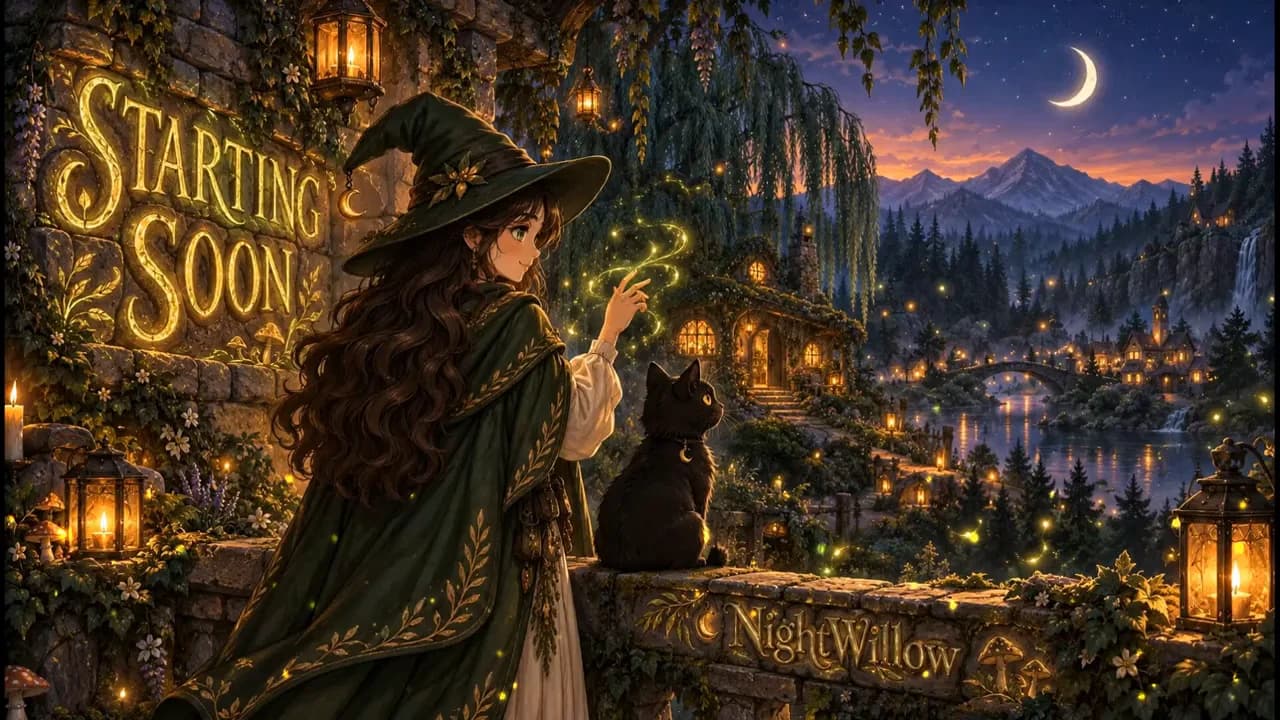
A finished Starting Soon scene.
This NightWillow Starting Soon scene was made with AlertForge and animated as a loop. Your brief creates a new scene; review the artwork, the lettering, and the motion before using it live.
Starting Soon, BRB, Offline, and Ending
Generate the break screens your stream needs from the same approved style sheet, so every scene looks like one channel.
Still or animated
Download the 1920 × 1080 scene as a PNG, or animate it into a looping WebM for OBS. Animation uses additional credits.
Your name and your character
Show your channel name on the scene and keep your mascot or logo front and center, so viewers know whose stream is about to start.
From your idea to your channel
- 01
Describe your channel
Start a stream pack project with your theme, character, and colors, then approve your style sheet.
- 02
Generate your scenes
Select Starting Soon and any other scenes in the builder and check the credit cost. Review each scene, then animate the ones you want to move.
- 03
Add it to OBS
Create a Starting Soon scene in OBS. Add the PNG as an Image Source, or the WebM as a Media Source with Loop turned on. Add music or a countdown on top, then switch to it before you go live.
Choose your assets.
See the cost first.
Start with your style sheet, then select what to generate. One-time credits and monthly plans share the same wallet. A credit purchase does not lock you into a fixed set of assets.
See current pricingBefore you start
What size should a starting soon screen be?
Match your stream’s base canvas in OBS, which is usually 1920 × 1080 for a 1080p stream. AlertForge scenes are generated at 1920 × 1080.
Can the starting soon screen be animated?
Yes. After you generate the still scene, animate it into a looping WebM. Animation uses credits, and the builder shows the cost before you confirm.
Is this a free starting soon screen maker?
New accounts receive one-time signup credits covering a first style sheet. Generating the finished scenes uses credits, with the cost shown before you confirm.
Does it include a countdown timer?
No. The scene is the artwork and motion. Add a countdown, music, or text in OBS on top of it.
Build the rest of your look.
Your approved style sheet can guide the next asset in the same project. Generate and review each piece as you need it.